The CVK 600 is one of the most reliable poker analyzer phones on the market, but like any sophisticated electronic device, it can occasionally encounter issues. Most problems stem from improper setup, low battery, pairing failures, or environmental interference — and nearly all of them have simple fixes.
This troubleshooting guide covers the most common CVK 600 problems reported by users and provides step-by-step solutions to get your analyzer working perfectly again.
Problem 1: Analyzer Phone Won’t Turn On
Symptoms: Pressing the power button produces no response — no screen, no LED, nothing.
Most likely causes and solutions:
- Battery fully depleted: If the CVK 600 has been unused for weeks, the battery may have discharged completely. Plug it into the original charger (not a generic USB charger — the CVK 600’s battery management requires the correct voltage) and wait at least 30 minutes before attempting to power on. The LED indicator near the charging port should illuminate red while charging.
- Charging port obstruction: Inspect the charging port for dust or debris. Use a wooden toothpick (never metal) to gently clean the port. Compressed air works well too.
- Charging cable failure: Try a different charging cable that you know works with other devices. The CVK 600 uses a standard micro-USB or USB-C connector (depending on model version).
- Hardware failure: If none of the above works, contact your supplier. The CVK 600 has a one-year warranty covering manufacturing defects.
Problem 2: Scanner Camera Not Reading Barcode Cards
Symptoms: The phone is on and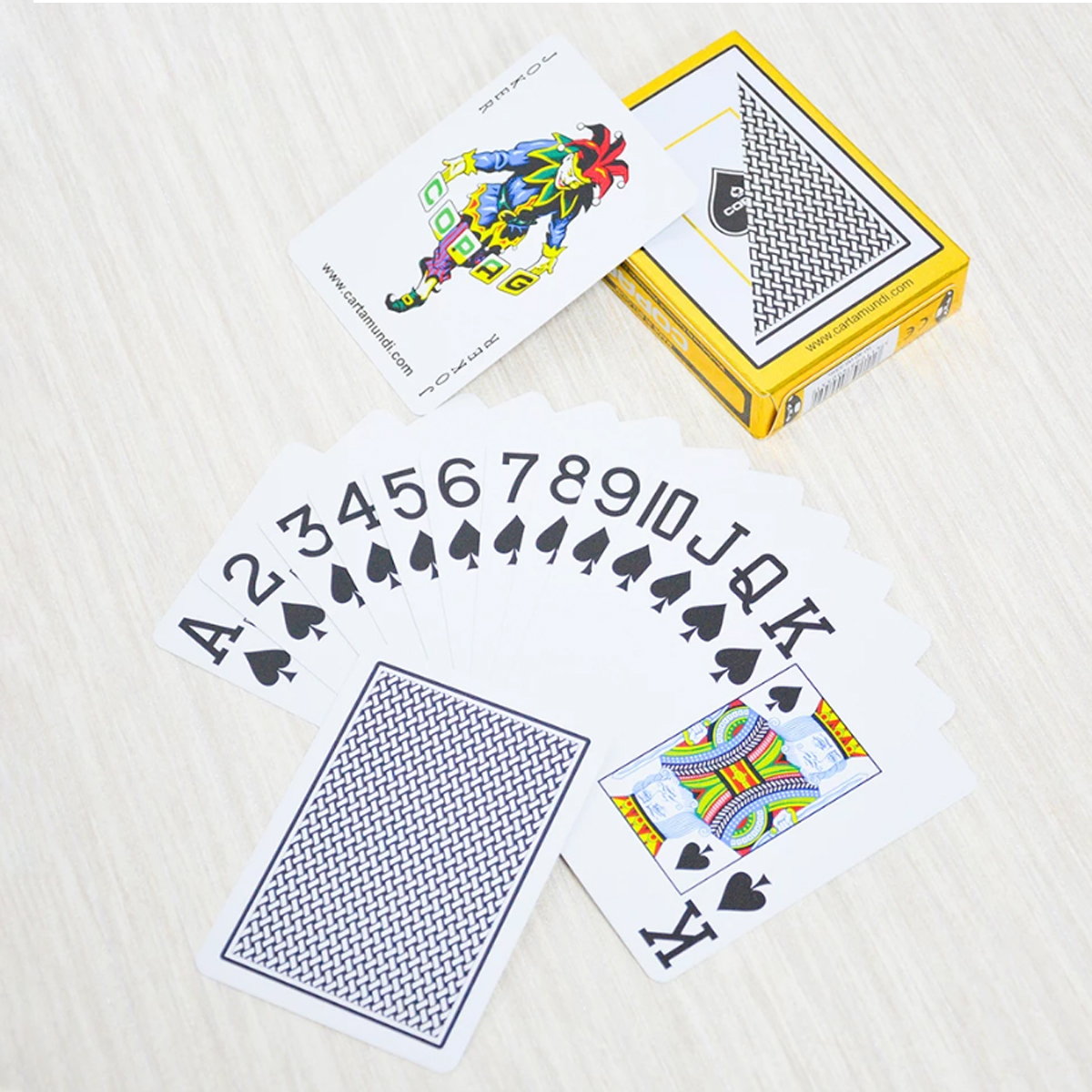 the scanner app is running, but it does not detect or read the barcode markings on the playing cards.
Most likely causes and solutions:
- Incorrect scanning distance: The CVK 600’s built-in camera has an optimal scanning range of 20-40 cm. If the phone is too close or too far from the cards, the barcode cannot be read. Move the phone to approximately 30 cm from the cards and try again. The app should show a green indicator when the distance is correct.
- Poor lighting: The barcode scanner requires adequate ambient light to function. In dimly lit rooms, move the phone to a brighter area or reposition the cards closer to the available light source. The scanner does NOT work in complete darkness — the camera needs some visible light to capture the barcode pattern.
- Worn barcode markings: Barcode-marked cards degrade with use. After 20-30 games, the edge markings become less distinct. Try scanning a fresh deck to confirm whether the issue is with the cards or the scanner. If a new deck scans perfectly, it is time to replace your old deck.
- Camera lens obstruction: Check the camera lens for fingerprints, dust, or smudges. Clean it gently with a microfiber cloth. A dirty lens is the single most common cause of scanning failures — and also the easiest to fix.
- Wrong card orientation: Barcode markings are on the edges of the cards, not the faces or backs. The scanner camera must have a clear line of sight to the card edges. If cards are stacked or overlapping, the scanner cannot read them.
Problem 3: Bluetooth Earpiece Not Connecting
Symptoms: The Bluetooth earpiece does not pair with the CVK 600, or it pairs but drops the connection frequently during games.
Most likely causes and solutions:
- Earpiece not in pairing mode: Most CVK 600-compatible earpieces enter pairing mode by holding the power button for 5-7 seconds until the LED flashes blue and red alternately. If the LED stays solid or does not flash, the earpiece is not in pairing mode.
- CVK 600 Bluetooth is off: In the analyzer app, navigate to Settings → Bluetooth and ensure it is toggled ON. Some users accidentally disable Bluetooth while adjusting other settings.
- Previously paired to another device: If the earpiece was previously connected to a different phone or analyzer, you need to clear its pairing memory. Turn off the earpiece, then hold the power button for 10+ seconds until the LED flashes rapidly — this resets pairing data. Then re-pair with the CVK 600.
- Distance too great: Bluetooth range is approximately 10 meters in open air, but walls, metal furniture, and other electronic devices can reduce this significantly. Keep the earpiece within 2-3 meters of the CVK 600 during games.
- Low earpiece battery: A nearly depleted earpiece may pair successfully but then drop the connection. Charge the earpiece fully (typically 1-2 hours) and try again.
Problem 4: Incorrect Game Results or Wrong Hand Prediction
Symptoms: The CVK 600 predicts a winning hand, but the actual outcome is different.
Most likely causes and solutions:
- Wrong game mode selected: The CVK 600 supports Texas Hold’em, Omaha, Baccarat, and other variants. If the app is set to Texas Hold’em mode but you are playing Omaha, the hand rankings will be wrong. Double-check the game mode in the app settings before each session.
- Partial card scan: If the scanner only captured some of the dealt cards — for example, 4 community cards instead of 5 — the analysis will be based on incomplete information. Ensure all cards are within the scanner’s field of view and are not obstructed by chips, drinks, or other objects.
- Using unmarked cards mixed with marked cards: If even one card in the deck is not barcode-marked, the analyzer cannot account for it. Always verify that your entire deck is properly marked before starting a game.
- Software calibration error: Rarely, the analyzer’s calibration drifts. In the CVK 600 app, run the “Recalibrate Scanner” function from the Settings menu. This takes about 30 seconds and involves scanning a reference barcode card to reset the software’s recognition parameters.
Problem 5: Phone Overheating During Extended Use
Symptoms: The phone becomes noticeably warm after 1-2 hours of continuous scanning, and may slow down or shut off.
Solutions:
- The CVK 600’s processor works hard during continuous scanning — some warmth is normal. However, if it becomes too hot to hold comfortably, switch to intermittent scanning mode (scan only when you need information, not continuously) to reduce processor load.
- Keep the phone away from direct heat sources — do not leave it on a sunlit table or near a heater vent.
- Remove any phone case during extended use — cases trap heat. The CVK 600’s chassis is designed to dissipate heat, and a case interferes with this.
- If overheating persists, take a 10-15 minute break every hour to let the phone cool down.
Problem 6: App Crashing or Freezing
Symptoms: The poker analyzer app closes unexpectedly or becomes unresponsive.
Solutions:
- Restart the app: Force-close the analyzer app and relaunch it. This resolves most temporary software glitches.
- Restart the phone: If the app continues crashing, restart the entire phone. A full restart clears the system cache and refreshes all background processes.
- Free up storage space: If the phone’s storage is nearly full (less than 500 MB free), the app may struggle to write temporary scan data. Delete unnecessary files — old scan logs, screenshots, or downloaded content.
- Software update needed: Contact your supplier to check if a software update is available for your CVK 600 model. Updates fix known bugs and improve scanner performance.
- Factory reset (last resort): If nothing else works, back up your settings (if possible) and perform a factory reset from the phone’s system settings. Re-pair all devices afterward.
Preventive Maintenance Tips
Most CVK 600 problems can be prevented with simple maintenance:
- Charge after every session: Do not let the battery drop below 20% before recharging. Deep discharges shorten battery lifespan.
- Clean the camera lens weekly: A microfiber cloth and 5 seconds of cleaning prevent most scanning issues.
- Update software promptly: When your supplier notifies you of an update, install it. Software updates often improve scanning accuracy and fix bugs.
- Store in a protective case: The CVK 600 looks like a phone but is more sensitive to drops and impacts. Always store it in a padded case when not in use.
- Test before every session: A 2-minute test — power on, scan a test card, verify earpiece connection — catches problems before they cost you money.
For setup instructions and device specifications, see our CVK 600 buying guide and the CVK 600 technical specifications page.